Free Minecraft server with Hosted Worlds in NoRisk Client
With Hosted Worlds in NoRisk Client, you can host your own Minecraft world securely and free of charge directly on your PC. Invite friends and start a shared adventure — without any complicated server setups.
Playing Minecraft with friends
Minecraft is simply more fun with friends. But setting up your own server is often time-consuming, complicated, and expensive. This is where Hosted Worlds in NoRisk Client comes in. With this handy feature, you can host your own Minecraft world easily, securely, and free of charge.
What are Hosted Worlds in NoRisk Client?
NoRisk Client is a Minecraft client with many different features. Among other things, it offers the option to host your worlds. This allows you to share any single-player world with friends and play together in no time.
You can decide for yourself whether you want to share an existing world or create a new one. The world can be vanilla or require a modpack. Even Bedrock players can join your world.
With Hosted Worlds in NoRisk Client, the Minecraft world is hosted directly on your PC. Normally, you would first have to open ports in your router settings and also share your IP address. However, this poses security risks and is therefore not recommended. On the other hand, with NoRisk Client, you can play with your friends safely and easily without sharing your IP address. Keep in mind that the performance of your PC and your internet connection will affect the stability of the hosted world.
Step by step: Host your own Minecraft world in NoRisk Client
Ready to share your world with friends? Here's a step-by-step guide to creating a Hosted World with NoRisk Client:
- Install NoRisk Client and log in with your Minecraft account.
- Select or create a profile – with your desired version and optional mods.
- Open a single-player world or create a new world.
- Press “Esc” in the game and select “Host World”.
- Configure your server to your liking. For detailed explanations of each setting, see below.
- Confirm settings with “Host World”. A chat message confirms successful creation.
- Invite friends – Via the NoRisk Client friends list or by sharing the server address. You can easily copy this by clicking on “Copy URL” in the chat.
If you want to change the visibility or other settings, open the menu again by pressing “Esc” and then “Host World.” To stop hosting your world, select “Stop World” at the bottom or leave the game to automatically disconnect all other players.
Keep in mind that when playing with a modpack, all players must have the same mods installed. If you are playing with NoRisk Client, you can simply share the profile with others. When the corresponding profile is launched, the mods will be downloaded automatically.
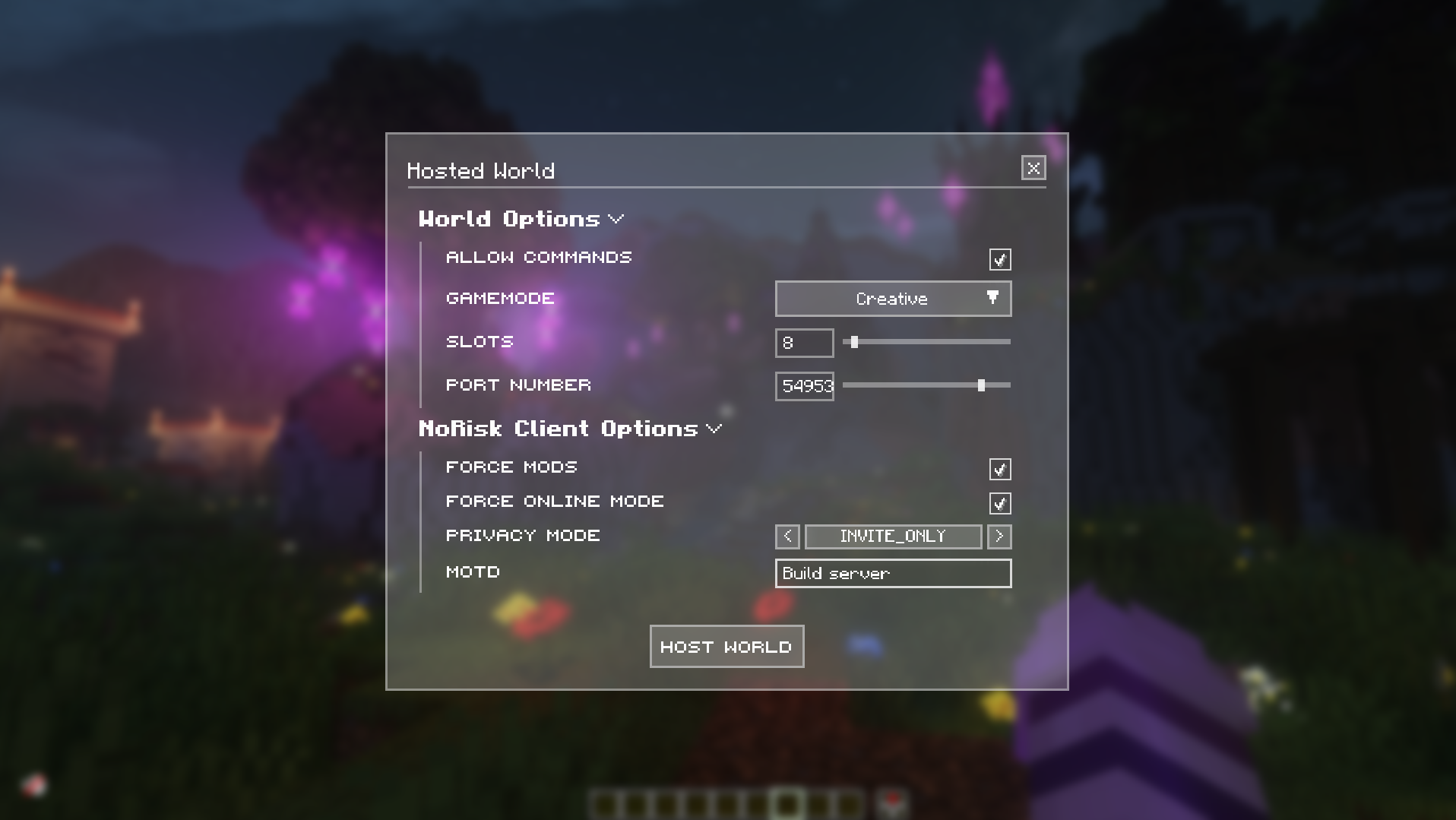
Server Configuration
All Hosted World options
- Allow commands – Allow or prohibit commands (for ALL players).
- Gamemode – Choose between Survival, Creative, Adventure, or Spectator.
- Slots – Specify how many players can join.
- Port Number – Select the port number.
- Force Mods – When enabled, all players must have the same mods.
- Force Online Mode – Authentication via Mojang: A Minecraft account is required.
- Privacy mode – Determine the visibility of your world:
- Public: Anyone with the server address can join.
- Invite Only: Only invited friends can join.
- Closed: No other players can join.
- MOTD – Description of your world that is displayed to others.
Step by step: Joining a hosted world
With NoRisk Client:
- Select a profile with the appropriate version and mods.
- You can find your friends' servers in the multiplayer server list. Depending on the settings, you may need to be invited or you can request an invitation. Alternatively, you can enter the server address.
- Join the server and get started.
Without NoRisk Client:
- Ensure that the version and mods match those of the host.
- If necessary, install mods manually.
- Add a new server in the multiplayer menu and enter the server address.
- Join the server and get started!
Share your world with NoRisk Client and enjoy additional benefits
With Hosted Worlds in NoRisk Client, you can play Minecraft with your friends for free and securely. You don't need an external server, nor do you have to go through the hassle of setting one up. Whether you're using Vanilla or Modpack, with the NoRisk Client you can share your world with just a few clicks.
NoRisk Client also has numerous other useful features that further enhance your gaming experience. Thanks to the integrated voice chat function, you can talk to your friends directly in the game without any additional programs. Alternatively, you can communicate wordlessly via pings.
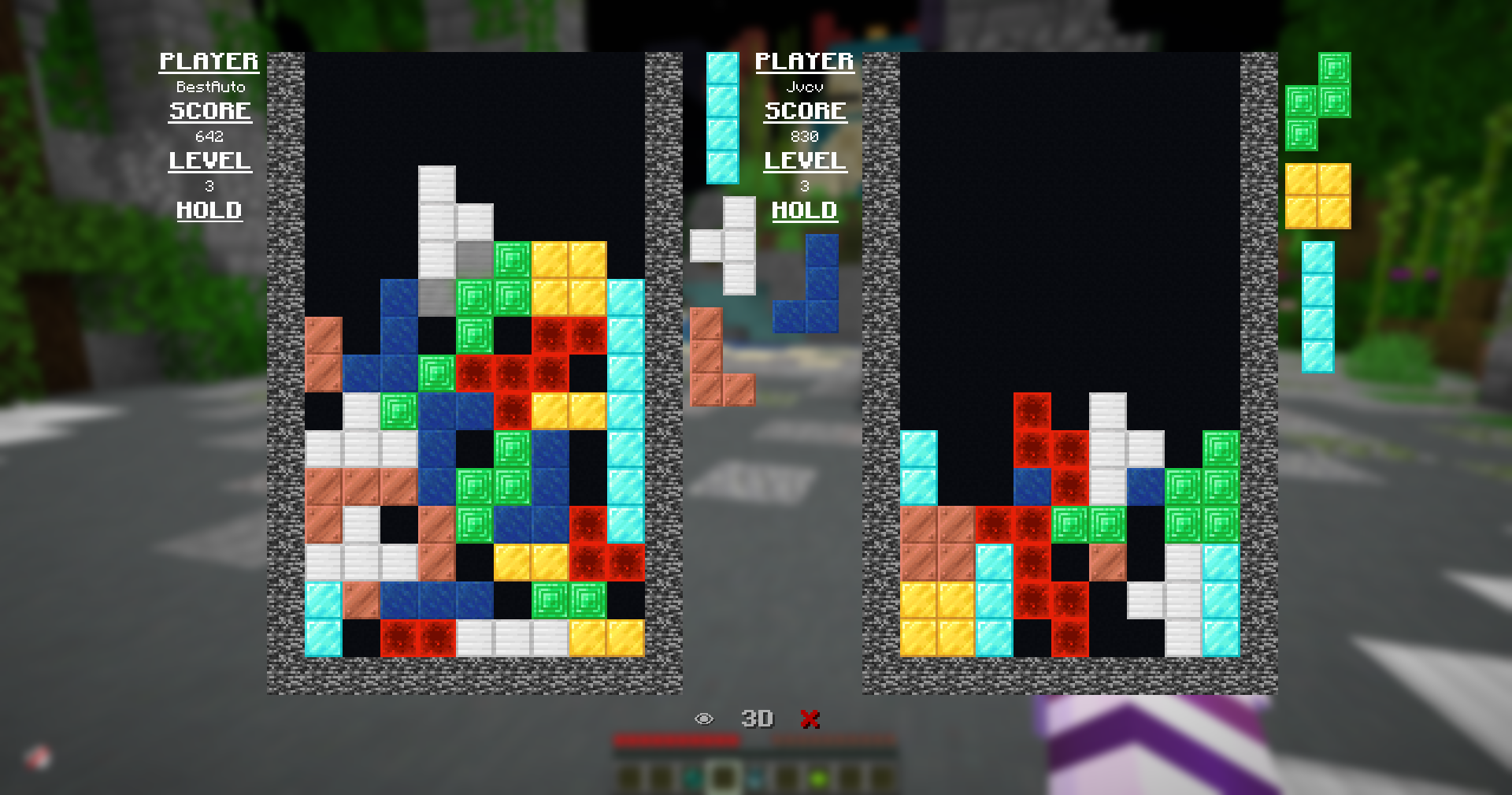
NoRisk Client also offers a selection of entertaining mini-games that you can play alone or with friends. These include popular classics such as Pong and Tetris.
Free, up and running in three minutes.
Done reading?Go play it yourself.
Install once, then play. More FPS, cosmetics and your friends are already there.
Download for free